What's New?
Tasks Release 1.97 - September 2026
Summary of Changes
Tasks release 1.97 contains a number of fixes and improvements to improve application stability, task handling, error management, caching, notifications and diagnostic logging.
-
Improved application stability when the Task Service is unavailable – Fixed crashes that could occur when opening announcements from the Inbox or Outbox while the Task Service is down.
-
Improved handling of large task folders – Tasks can now be handled in folders containing more than 1,000 patient-related tasks.
-
Improved multi-user support – Fixed an application start-up crash that could occur when multiple users share the same Windows profile.
-
Fixed Out of Office status – Resolved an issue affecting the display and handling of Task Out of Office status.
-
Fixed missing tasks and announcements in the Outbox – Resolved an issue where tasks and announcements created with a group as the issuer could temporarily remain in the cache and subsequently disappear from the Outbox.
-
Improved task data handling – Fixed issues with missing or null estimated duration values.
-
Fixed notification behaviour – Resolved an issue where task notifications could continuously flash.
-
Improved task reopening – Fixed an issue preventing a task from being reopened when a corresponding task instance was already open in Vision 3.
-
Improved error handling – Added improved handling of 4xx responses when creating or updating tasks.
-
Improved logging and diagnostics – Enhanced Task Client logging to provide better information when tasks become stuck.
-
Improved cache retry behaviour – Introduced a custom backoff mechanism for cache retries and reset the retry mechanism when the application restarts.
-
Fixed audit event submission – Resolved an issue where audit event POST requests could fail with a 400 response when the event field was empty.
-
Updated Patient Banner menu – Corrected the Consultation Manager menu label and associated indentation.
-
Included previous 1.9.6 changes – Tasks 1.9.7 incorporates the changes delivered in version 1.9.6.
User Benefit
This release improves the reliability and resilience of the Tasks application, particularly when the Task Service is unavailable or experiencing issues. It also improves the handling of high-volume task folders, provides clearer error and diagnostic information, and resolves several issues affecting task creation, notifications, caching and application start-up.
Tasks release 1.93 contains the following new features and improvements:
-
Single Sign On (SSO) - In preparation for single sign on across all Primary Care Solutions, when you log into Tasks, you are now presented with the Vision Single Sign On screen:
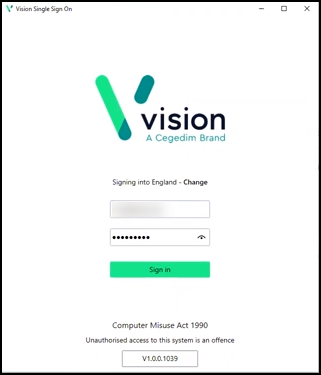 Important - It is vital that the first time you log on to Tasks, following the 1.9 update, you are connected to the internet. This ensures your SSO set up runs correctly.
Simply enter your registered email address and password in the usual way and select Sign in, this triggers the SSO update. Single Sign on enables you to switch between applications without having to log in again.
-
System Tray Settings - The System Tray Settings have been updated ready for the release of our exciting new applications. Select the System Tray Arrow
 and right click the Vision logo: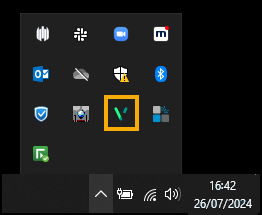
The Vision menu displays:
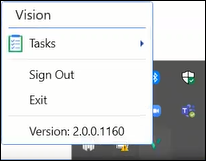
Select as required:
-
Tasks:
-
Open - Select to open Tasks.
-
Quit - Select to close Tasks.
-
-
Sign Out - Select to close all Primary Care Solutions.
Note - This leaves the SSO application running on your machine. You can switch between applications without the need to sign in.
-
Exit - Select to close all Primary Care Solutions.
Note - This closes the SSO application on your machine. To open an application you must sign in again.
-
-
Tasks in your List - The way tasks display in your task lists have been updated to more clearly differentiate between read, unread and selected tasks:

Read task. 
Read task you are hovering over, note the thin blue line around the task. 
Selected task displays in grey. 
Unread tasks display in pale blue. -
Task Templates - You can now select a Task Template from within the New Task screen:
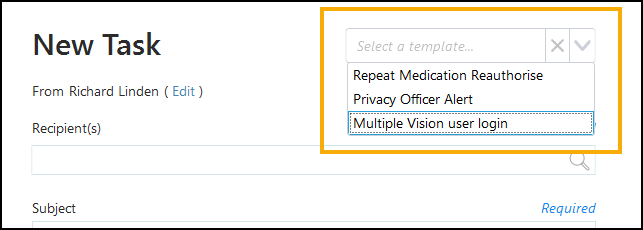 See Creating a Task for full details.
 -
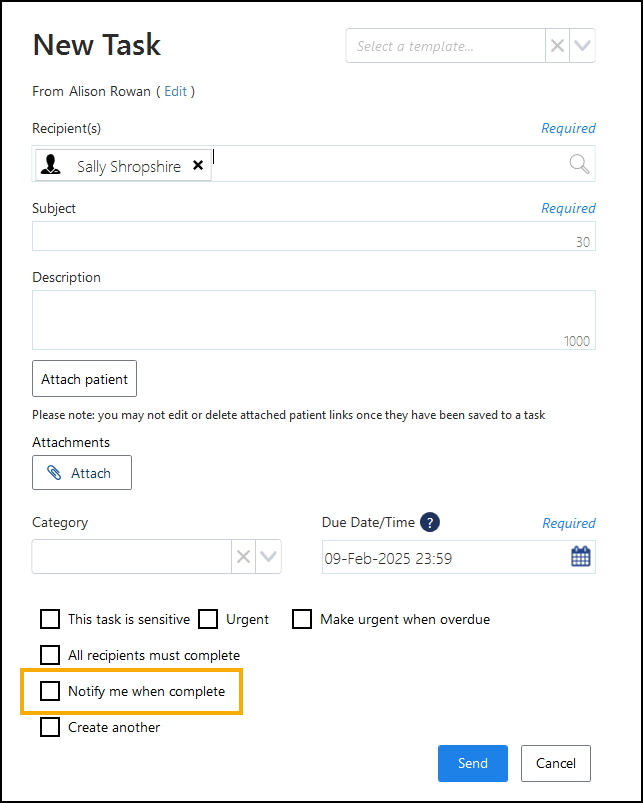
Notify me when complete - You can now select to be notified when a task is completed by its recipient(s):
Note - The Notify me when complete option is not available if you select to send the task to yourself only.-
New Task - Tick Notify me when complete to automatically receive an announcement when the task is marked Complete:
-
New Template - Tick Notify me when complete for the originator to automatically receive an announcement when any task created from the template is marked Complete:
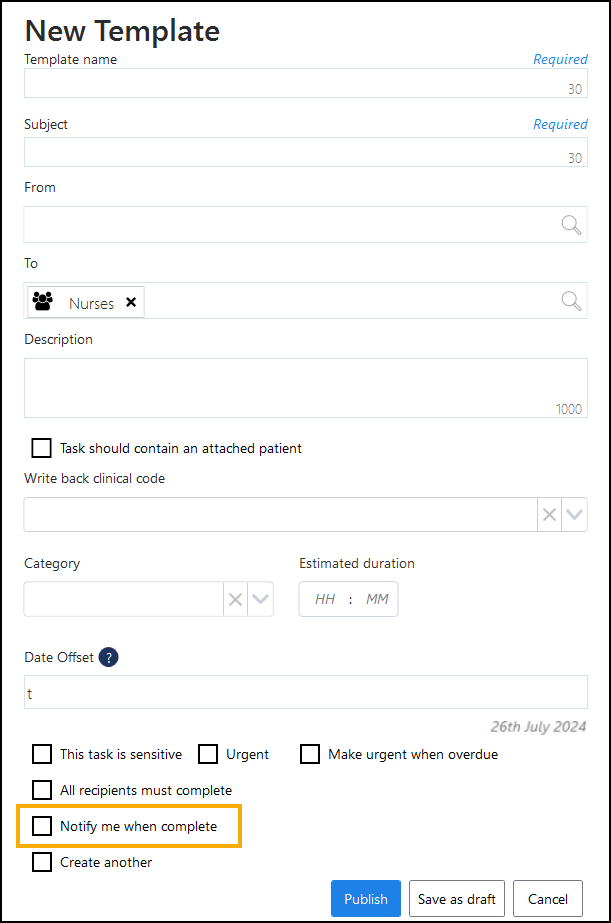 Training Tip - When creating a task from a template the Notify me when complete tick can be removed if it is not required.
When a recipient completes a task, a Task completed announcement is automatically sent to the originator of the task. Task Completed announcements expire after seven days:

-
-
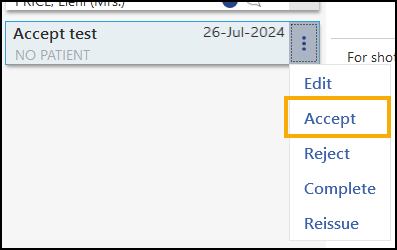
Accepting a Task - If a task is allocated to a group you are a member of, you can select to Accept it. This indicates to all other recipients and the originator that you are planning on actioning it. To mark a task as accepted:
-
From your My tasks list, select Options
 .
. -
Select Accept:
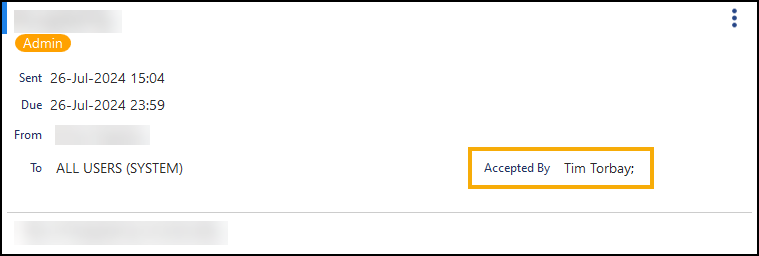
The new Accepted by section on the task updates with your name:
 Note - Even if a member of the group has accepted a task, it is still available for any member of the group to complete.
 -
-
Reissuing Tasks - If a task is allocated to you in error, or you need to send it on to another member of staff, you can now select Options
- Reissue: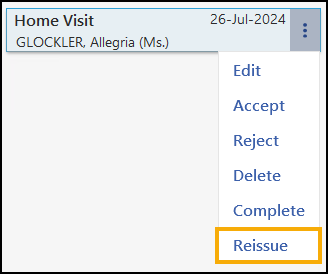
The Edit Task screen displays with a blank Recipient(s). Choose the new recipient(s) from the available list and select Update to reallocate the task.
See Editing a Task for details. -
Tasks Audit - You can now open a task from the Tasks Audit screen for viewing purposes. From the end of the audit row, select Options
- View this task: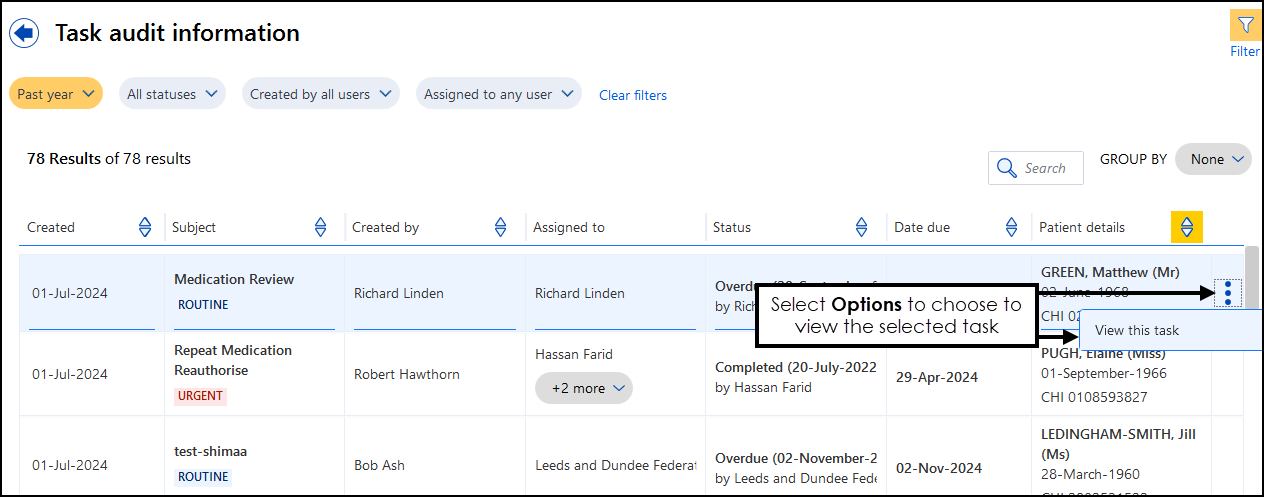 Note - View this task is for display purposes only, you cannot update the task from here.See Tasks Audit for full details.
 -
Out of Office - The Out of Office functionality has been updated:
-
System Administrators now have the ability to set up an out of office setting for other members of staff. This is designed to cover unexpected absences.
-
The Out of Office toggle is removed
See Setting an Out of Office for full details.
-
Previous Releases
 (Tasks 1.93 February 2023)
Tasks release 1.93 contains the following new features and improvements:
-
Single Sign On (SSO) - In preparation for single sign on across all Primary Care Solutions, when you log into Tasks, you are now presented with the Vision Single Sign On screen:
Important - It is vital that the first time you log on to Tasks, following the 1.9 update, you are connected to the internet. This ensures your SSO set up runs correctly.Simply enter your registered email address and password in the usual way and select Sign in, this triggers the SSO update. Single Sign on enables you to switch between applications without having to log in again.
-
System Tray Settings - The System Tray Settings have been updated ready for the release of our exciting new applications. Select the System Tray Arrow
and right click the Vision logo:
The Vision menu displays:
Select as required:
-
Tasks:
-
Open - Select to open Tasks.
-
Quit - Select to close Tasks.
-
-
Sign Out - Select to close all Primary Care Solutions.
Note - This leaves the SSO application running on your machine. You can switch between applications without the need to sign in.
-
Exit - Select to close all Primary Care Solutions.
Note - This closes the SSO application on your machine. To open an application you must sign in again.
-
-
Tasks in your List - The way tasks display in your task lists have been updated to more clearly differentiate between read, unread and selected tasks:
Read task.
Read task you are hovering over, note the thin blue line around the task.
Selected task displays in grey.
Unread tasks display in pale blue. -
Task Templates - You can now select a Task Template from within the New Task screen:
See Creating a Task for full details. -
Notify me when complete - You can now select to be notified when a task is completed by its recipient(s):
Note - The Notify me when complete option is not available if you select to send the task to yourself only.-
New Task - Tick Notify me when complete to automatically receive an announcement when the task is marked Complete:
-
New Template - Tick Notify me when complete for the originator to automatically receive an announcement when any task created from the template is marked Complete:
Training Tip - When creating a task from a template the Notify me when complete tick can be removed if it is not required.When a recipient completes a task, a Task completed announcement is automatically sent to the originator of the task. Task Completed announcements expire after seven days:
-
-
Accepting a Task - If a task is allocated to a group you are a member of, you can select to Accept it. This indicates to all other recipients and the originator that you are planning on actioning it. To mark a task as accepted:
-
From your My tasks list, select Options
. -
Select Accept:
The new Accepted by section on the task updates with your name:
Note - Even if a member of the group has accepted a task, it is still available for any member of the group to complete. -
-
Reissuing Tasks - If a task is allocated to you in error, or you need to send it on to another member of staff, you can now select Options
- Reissue:
The Edit Task screen displays with a blank Recipient(s). Choose the new recipient(s) from the available list and select Update to reallocate the task.
See Editing a Task for details. -
Tasks Audit - You can now open a task from the Tasks Audit screen for viewing purposes. From the end of the audit row, select Options
- View this task:
Note - View this task is for display purposes only, you cannot update the task from here.See Tasks Audit for full details. -
Out of Office - The Out of Office functionality has been updated:
-
System Administrators now have the ability to set up an out of office setting for other members of staff. This is designed to cover unexpected absences.
-
The Out of Office toggle is removed
See Setting an Out of Office for full details.
-
Tasks releases 1.8 and 1.8.1- November 2020
Tasks releases 1.8 and 1.8.1 contains the following new features and improvements:
-
Tasks Audit - Tasks now contains a comprehensive audit trail making it easy to search, filter and display any task related historical information you are looking for.
See Tasks Audit for details. -
Task Templates:
-
Estimated Duration - When adding a new Task Template you now have the option to add the amount of time you expect the task created from this template to take. Simply enter the expected time in Estimated duration. The Estimated duration displays along side the Due date and time within the task created from the template.
-
Save as Draft - You can now save a draft of a Task Template should you need to. Simply select Save as draft. Draft templates display in the Task Template list with (draft) following the template name, where they can selected, finalised and published for use.
See Creating Task Templates for details. -
-
Tasks in Consultation Manager - You can now see the details and access a patient's outstanding tasks from the Reminder in Consultation Manager.
See Using Tasks from Consultation Manager for details.
Tasks - v1.7 April 2020
Tasks v1.7 introduces the following new features and improvements:
Vision 3
- Launching Modules - Vision 3 users can now launch the following modules from Tasks:
- Consultation Manager
- Registration
See Launching Vision 3 Modules from Tasks for details.
Tasks
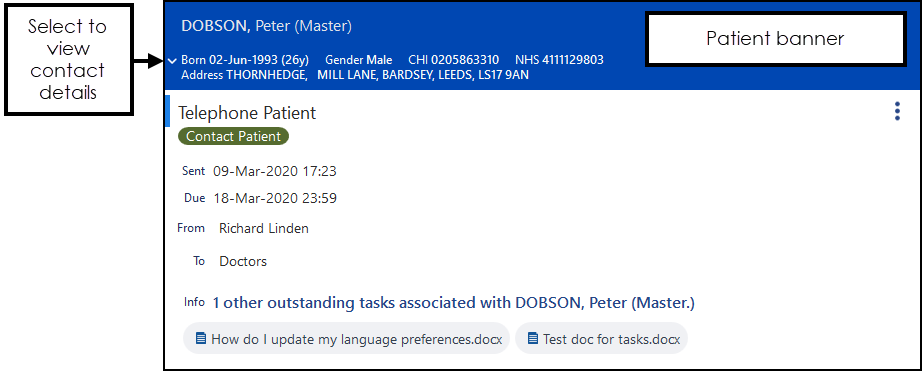
- Patient Banner - Where a patient is attached, the patient demographic details now display on a banner at the top of a Task or Announcement, select the white arrow
 for contact details if available:
- Counters - When you receive a new item into a folder, the count on the folder increases and displays red until you view the new item:
- Display Order - The tasks in your My tasks folder now display in order of creation by default.Remember - You can use Reorder
 to change the display order of your tasks.
 - Due Date - A New Task automatically has a Due Date of 't' for today, you should update this as required.
- Close - A Cancel
 option replaces Close
  on:
on:- New Task
- New Template
- New Announcement
- Templates - An All recipients must complete option is now available when creating a Template.
- Editing a Task - To edit a task, that you have not created or that you are not the recipient of, you must now enter a reason for the edit. Note - You must be a System Administrator to update a Task that you are not an originator or recipient of.See Editing a Task for details.
-
Patient Search - If you opt to attach a patient to a task, select More Patient Info to view the patient demographics, when you select the back arrow
 , you are now returned to the Patient Select screen
Tasks v1.5 - November 2019
Tasks v1.5 introduces the following updates to Tasks:
- Attachments - You can now attach documents to a task from both:
- A patient record - When selected a list of available documents display.
- Your network - You can select any document you have access to and attach it to a task.
See Adding Attachments for details. - Notifications - If Tasks is open but minimised or, hidden behind another screen, when you receive a new task, a red disk displays on Tasks on your task bar
 .
. - All Recipients Must Complete - You can now tick All recipients must complete to create a task that must be completed by all recipients.See Creating a Task for details.
- All Users group - An All Users group is now automatically created and populated from your active practice staff. This group can be used to send tasks and announcements to all of your active staff members.
- Task Templates - You can now copy a Task Template to speed up the process of creating a new one, select Copy
 from the template you wish to copy.
Tasks v1.4 - May 2019
Tasks v1.4 introduces the following updates to Tasks:
- Clinical write back to Vision 3 - When creating a task you can now select from a predefined list of coded items, see Administrative Codes for a list of these codes.
- User Interface - The screens, notifications and options available from Tasks have been updated to make them clearer, more intuitive and easier to use.
- Selecting a Patient - When attaching a patient to either a task or an announcement, once you have found the patient, you can simply select them from the list to add them. To see their demographic information, select More Patient Info
 .
.
Tasks v1.3 - July 2018
Tasks v1.3 introduces the following updates to Tasks:
- Cross-organisational Tasks - The ability to send and receive tasks from organisations that you have set up legitimate relationship with. See Creating Specific Tasks and Receiving and Allocating Cross Organisational Tasks for full details.
- Keyboard Shortcuts - A suite of eleven keyboard shortcuts have been introduced, see Keyboard Shortcuts for full details.
Tasks v1.2.4 - June 2018
Tasks v1.2.4 introduces the following updates to Tasks:
- Outbox - On the off chance that the Tasks services become unavailable before a task can be sent, an Outbox has been introduced. Any task or announcement is held in the Outbox and then automatically sent once the Tasks services are restarted. See Troubleshooting for details.
- Out of Office forwarding option removed - In preparation for the cross organisation feature due for release in Tasks v1.3, the forwarding option within Out of Office has been removed.
Tasks v1.2 - April 2018
Tasks v1.2 introduces the following updates to Tasks:
- Announcements - An Announcement facility has been added to Tasks, this enables you to send and receive 'for information only' notices to and from your colleagues. See Creating an Announcement and How do I know if I have received an Announcement? for details.